
Live Call Transfers let Clara connect an important caller to you live, in real time, instead of only taking a message. Clara still answers and screens every call. When a call matches a rule you’ve set, Clara rings you, tells you who is calling and why, and lets you decide whether to take it.
Live Call Transfers is part of the Pro plan, and off by default. You turn it on and add your own rules in the Clara app.
How it works
- You set rules for the calls that are worth a live transfer
- Clara answers and screens every incoming call, exactly as it does today
- If the call matches one of your rules, Clara rings you with the caller’s name and their reason for calling
- You decide what happens next:
- Accept and Clara passes the caller straight through to you.
- Decline, or do nothing, and Clara finishes the call, takes a message, and sends you the notes as usual.
Adding a transfer rule
-
Open the Clara app
-
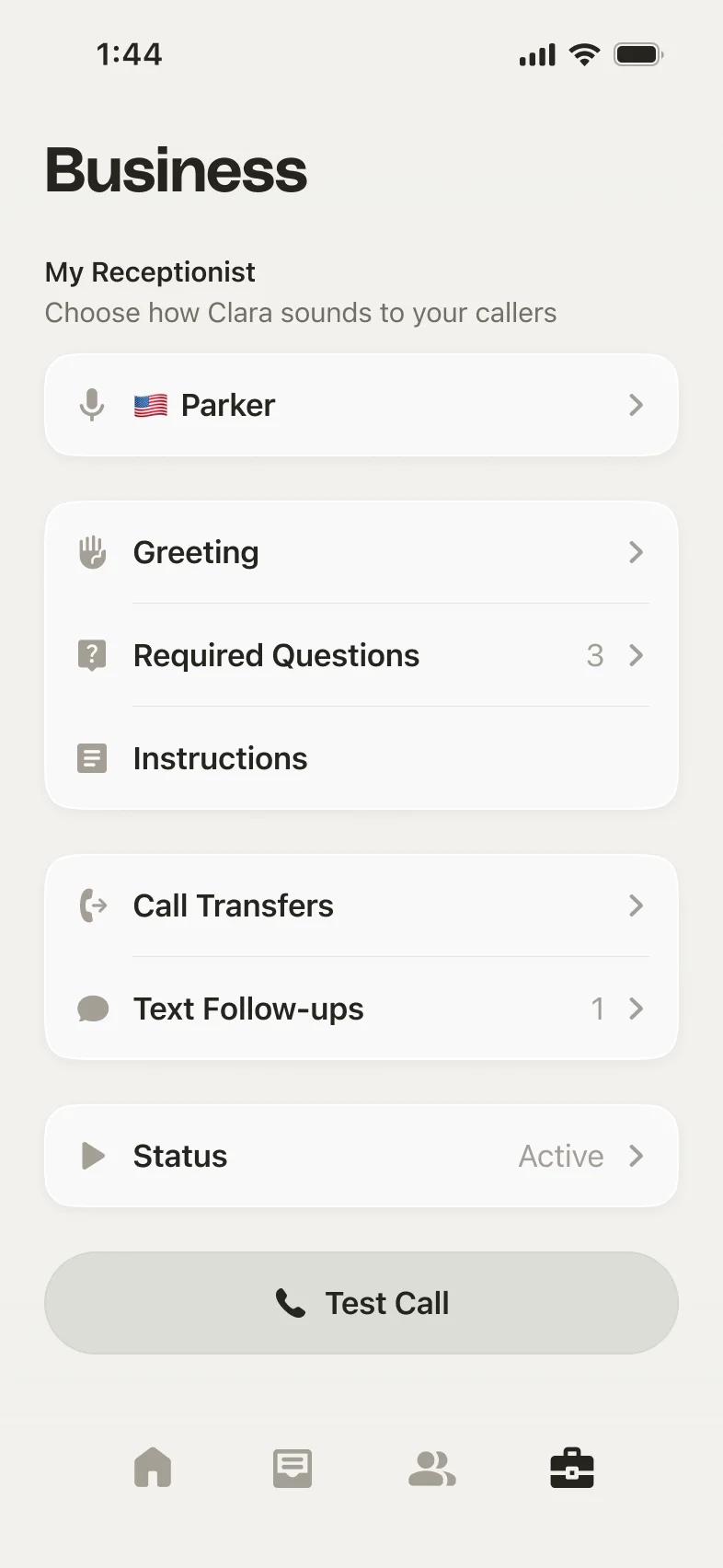
Tap the Business tab (bottom right)
-
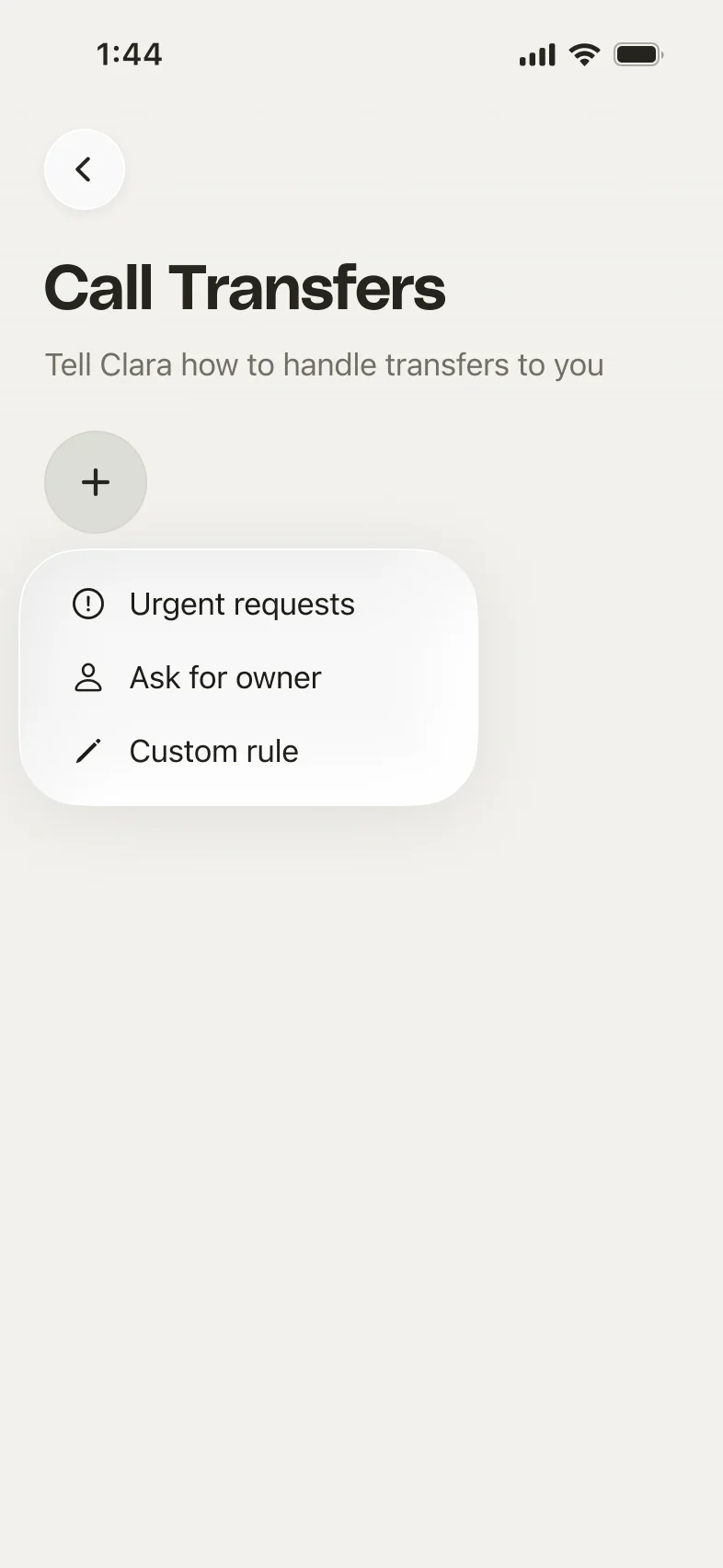
Tap Call Transfers, then tap the + button
-
Give the rule a name, for example “Urgent requests”
-
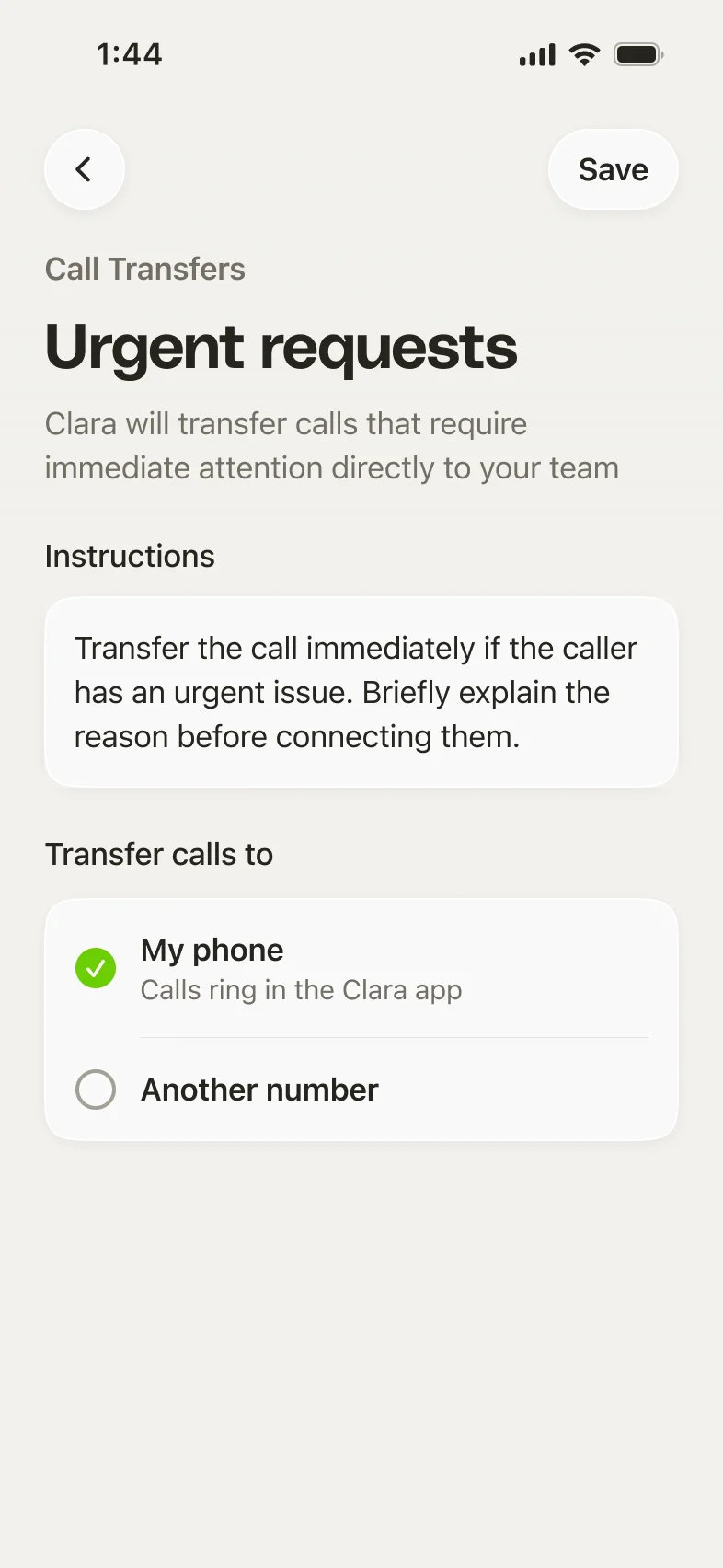
In Instructions, describe which calls Clara should transfer and what to say before connecting the caller
-
Under Transfer calls to, choose where the call should go:
- My phone: calls ring inside the Clara app
- Another number: enter the number you want the call sent to
-
Tap Save
Once saved, the rule is active and Clara will transfer matching calls to you live.
Writing good instructions
Clara follows your instructions to decide when to transfer a call, so be specific about the calls you want to reach you. A few examples that work well:
- Existing clients: “Transfer the call if the caller is an existing customer we already work with.”
- High-value inquiries: “Transfer the call if the caller is asking for a quote or wants to book a job.”
- Urgent matters: “Transfer the call immediately if the caller has an urgent issue. Briefly explain the reason before connecting them.”
Start with one or two rules for the calls you’d always want to take, then adjust them once you’ve seen how they work in practice.
Editing or removing a rule
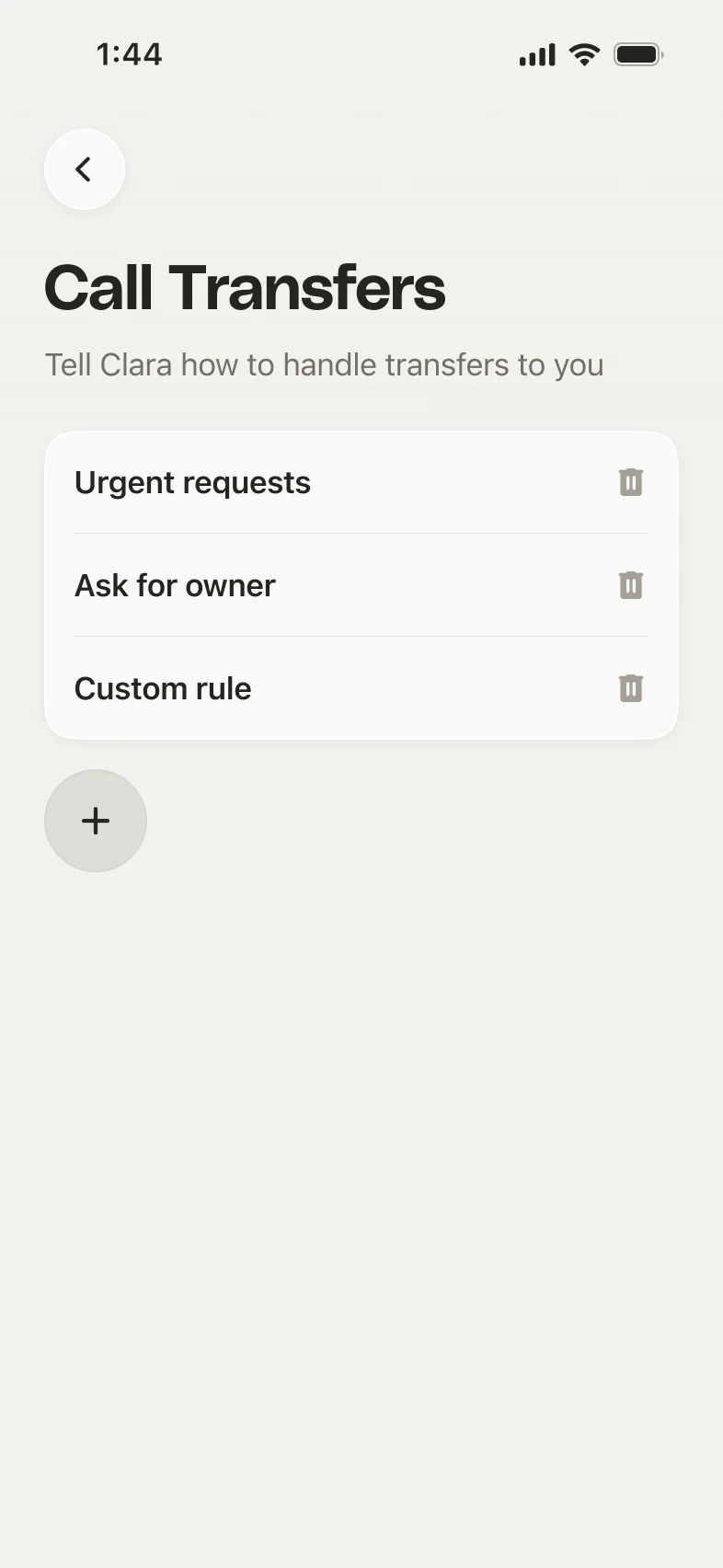
To change a rule, open Business → Call Transfers and tap the rule you want to edit. To remove it, tap the trash icon next to it.
Turning Live Call Transfers off
Live Call Transfers only run while you have active rules. To stop them, remove your rules, or delete the specific rule you no longer want. Clara will go back to taking a message on those calls.
Still need help?
If a call isn’t transferring the way you expect, reach us at [email protected] and someone from our team will help you out.