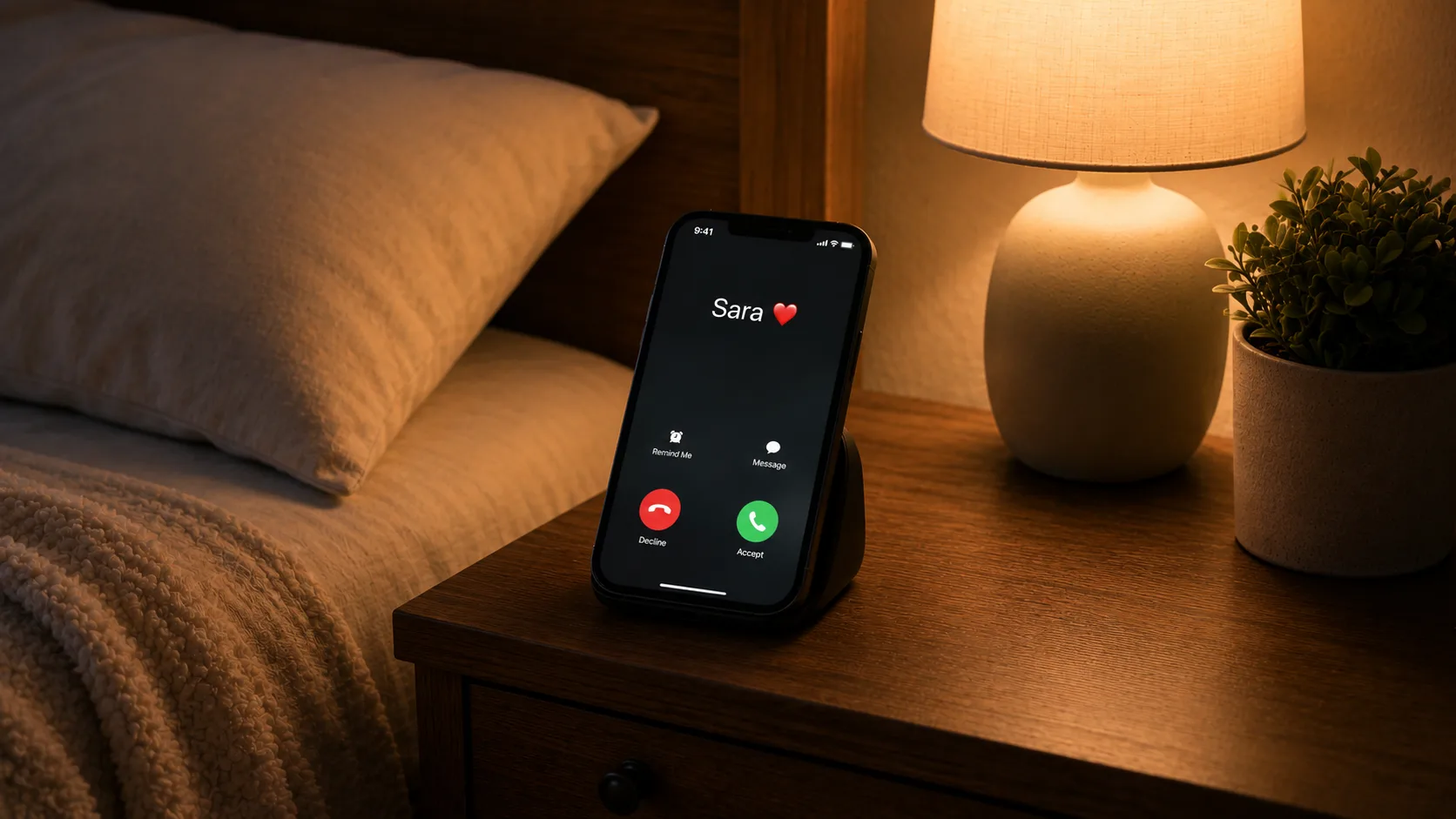
Clara handles your calls - but some calls you want to take yourself. Your partner. Your mum. A supplier you’re mid-negotiation with. Excluded Contacts lets you decide who always rings through to you directly.
How it works
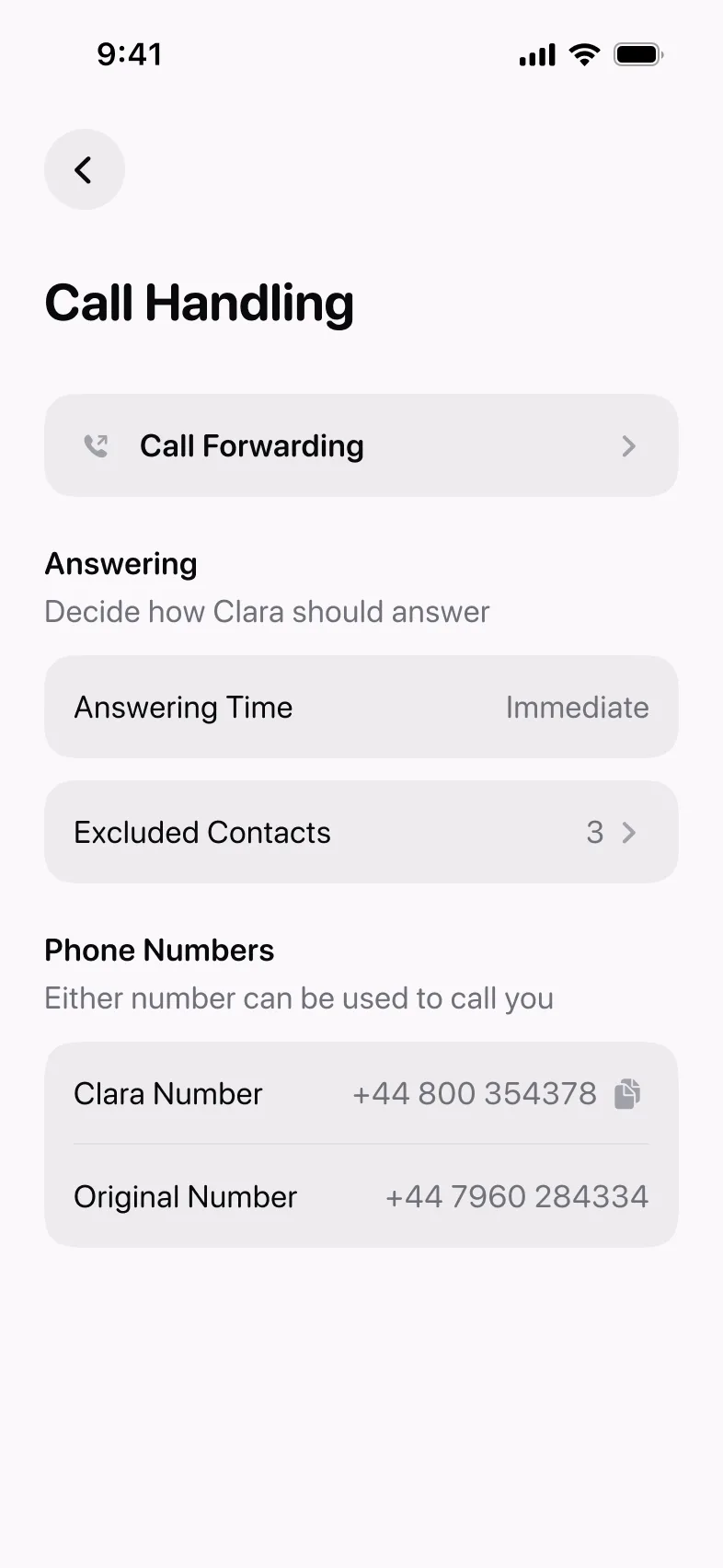
Go to Settings → Call Handling → Excluded Contacts. Clara will ask permission to access your contacts - grant it, and your full contacts list appears.
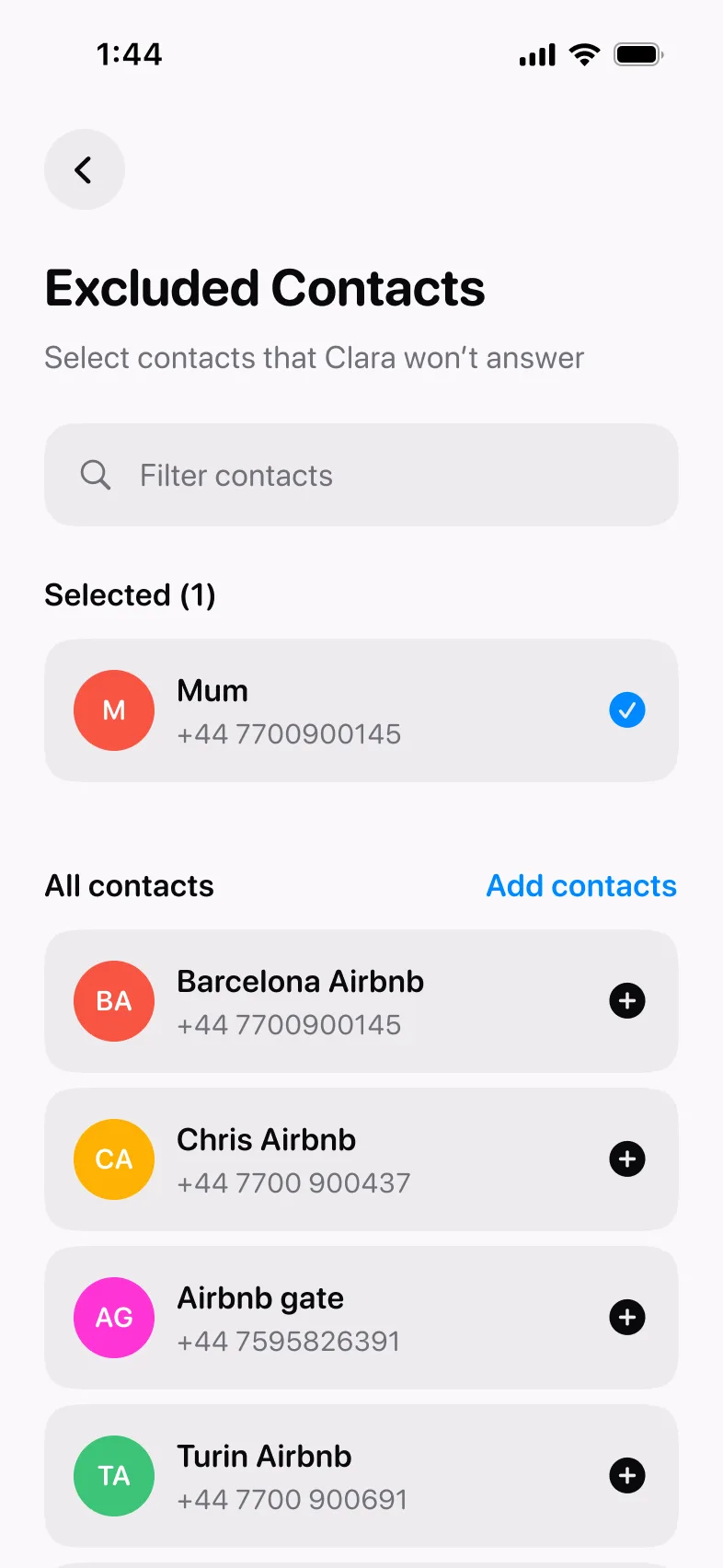
From there, select the people you want to exclude. You can search and filter to find contacts quickly. Anyone you add to the exclusion list will always ring through to you directly - Clara won’t answer, and the call won’t appear in your Clara inbox.
Who to add
A few people almost always end up on the list:
- Personal contacts - your partner, family, close friends. Calls you want to take yourself, every time.
- Specific work contacts - a supplier you’re mid-negotiation with, a client at a sensitive point in a project. Calls where you want to be the one to pick up.
You can add or remove contacts at any time. The list doesn’t affect anything else - Clara still handles every other call normally.
Product Updates is our series of short guides on what’s new in Clara and how to get the most out of it.